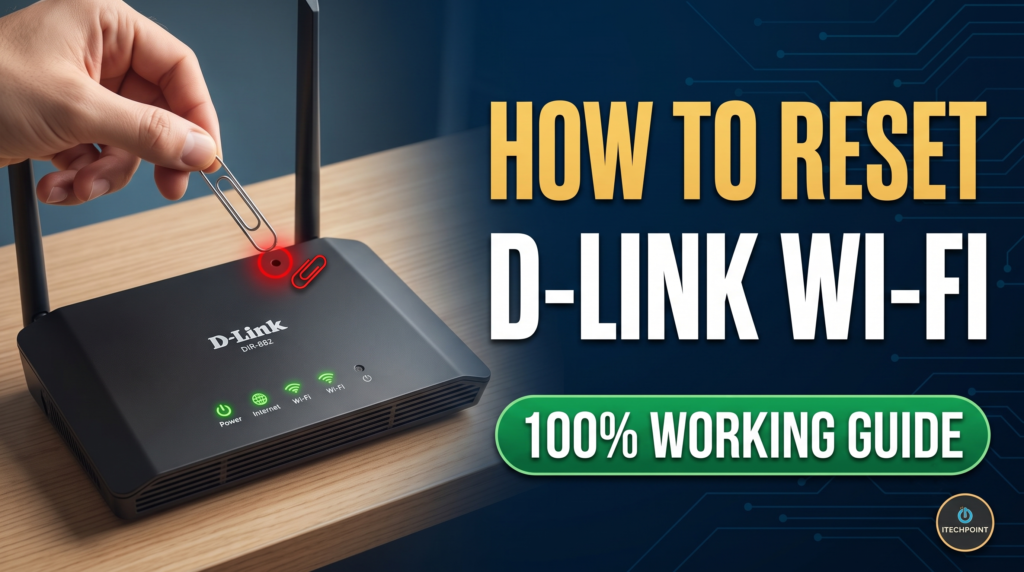
How to Reset D-Link Wi-Fi Router: Complete Step-by-Step Guide
We all have dealt with Wi-Fi being too slow or dropping without warning. Routers are our digital servants that work non-stop, day and night, managing countless incoming and outgoing data requests. However, the electronics inside are subject to natural wear and tear. Over weeks and months of continuous operation, unnecessary cached data packets, conflicting IP assignments, overheating chips, and temporary non-system files bulge inside the router’s physical memory (RAM). When this digital junk builds up, your connection begins to stutter, lag in online games, or disconnect completely.
The most effective, permanent solution to clear these system bottlenecks is to perform a proper reset. In this guide, we walk you through the difference between a simple reboot and a full factory reset, followed by the exact steps to reset your D-Link Wi-Fi router back to its original peak performance.
Restart vs. Factory Reset: Knowing the Difference
Before you jump straight into erasing your settings, it is crucial to understand what type of reset your D-Link router actually needs:
- Soft Reset (Reboot):
A soft reset simply cycles the electrical power. It turns off the router, flushes temporary cache memory, and restarts the operating firmware without touching your custom Wi-Fi network name (SSID), password, or port forwarding configurations. - Hard Reset (Factory Reset):
A factory reset wipes the device completely clean. It deletes all saved configurations, custom credentials, DNS rules, parental control settings, and security passwords, restoring the router to the day you took it out of its retail box. If your D-Link router refuses to open the admin panel, suffers from severe malware corruption, or you have lost the admin password, a factory reset is mandatory.
Method 1: The Physical Hardware Reset (Reset Button)
This is the fastest and most reliable method, especially if you cannot access the web dashboard on your phone or laptop.
Step 1: Keep the Router Powered On
Make sure your D-Link router is plugged into a wall outlet and the power LED indicator shows a steady solid light. Never attempt a reset while the router is turned off.
Step 2: Locate the Reset Pin-Hole
Look at the back or underside of your router. You will see a small, recessed hole clearly labeled “RESET”. Because it is recessed to prevent accidental presses, you will need a straightened paperclip, needle, or SIM ejector pin.
Step 3: Press and Hold for 10 to 15 Seconds
Carefully insert the paperclip into the pin-hole until you feel a tiny mechanical click. Press and hold down the internal button continuously for 10 to 15 seconds.
Step 4: Watch the LED Lights
While holding the pin, watch the front panel lights. When the power LED changes color (usually flashing amber or orange) and turns off briefly, release the button.
Step 5: Allow the Router to Reboot
The router will take roughly 2 to 3 minutes to clear its internal flash memory and restart. Once the power and Wi-Fi lights turn steady green or white, the reset is complete.
Method 2: Software Reset via Web Admin Interface
If you know your router login credentials and prefer not to fiddle with paperclips, you can reset it directly through your web browser:
- Connect your computer or smartphone to the router using an Ethernet cable or the default Wi-Fi name.
- Open any browser (Chrome, Edge, or Firefox) and enter the default D-Link IP address: 192.168.0.1 or http://dlinkrouter.local.
- Log in with your admin credentials (default username is usually “admin” and the password field is left blank or set to “admin”).
- Navigate to the Management or Tools tab in the top navigation bar.
- Click on System / Maintenance and select “Restore to Factory Default” or “Reboot”.
- Confirm the prompt and wait 2 to 3 minutes while the system completes the sequence.
Post-Reset Configuration Checklist
Once your router has reset to factory defaults, your old Wi-Fi name and password will no longer work. Follow these quick steps to get back online:
- Look at the sticker on the bottom of the D-Link router to find the default Wi-Fi SSID and network key.
- Connect your device and navigate back to http://dlinkrouter.local.
- Follow the Setup Wizard to establish a new strong Wi-Fi password (WPA2/WPA3 encryption).
- Change the default “admin” password immediately to prevent unauthorized local network access.
- Check the D-Link support page for the latest firmware updates to patch security vulnerabilities.
Frequently Asked Questions (FAQs)
Q1. Does resetting my D-Link router delete my ISP account details?
Yes. If your Internet Service Provider uses PPPoE login credentials (username and password provided in your internet contract), a factory reset will erase them. You will need to re-enter them in the setup wizard to restore your internet access.
Q2. How often should I reset my router?
You do not need to factory reset your router frequently. A simple power reboot once every month is enough to clear cache memory. Perform a hard factory reset only when experiencing persistent connection crashes or forgotten login credentials.
The best way to fix deep software malfunctions and clear the board is to reset your D-Link back to factory settings. It wipes the device’s memory clean from all saved wrong passwords and unwanted network configurations.
In this guide, we are going to explore all that you need to know about restoring the factory state of your wireless modem. We will tell you the difference between rebooting and resetting, two simple methods to perform the reset procedure, and show you how to set up your Wi-Fi after the operation.
Reboot vs Factory Reset: What Is the Difference?
How to Fix Windows 10 Errors Complete Step by Step Guide https://itechpoint.in/how-to-fix-windows-10-errors/
Before you start with the reset procedure, you may want to understand the differences between rebooting and resetting your device.
1. Soft Reboot (Power Cycle):
It is enough to turn off your router for 30 seconds and then power it back on. This operation will wipe only the system memory of the router, thus restarting the device. It won’t clear your passwords or Wi-Fi settings.
2. Hard Factory Reset:
It requires you to press the pinhole Reset button located at the back of the device. This operation will wipe everything from the router memory, including your Wi-Fi network name, passwords, and ISP login and password.
We recommend a hard reset only when the device fails to operate properly or you forgot your admin password.
Important Checklist Before You Reset the Router
Prior to pressing the Reset button on your D-Link, make sure you have done the following:
1. Get Your PPPoE Username and Password
Some fiber and broadband ISPs offer PPPoE Internet connection type. In that case, you will need to provide a username and password to access the Web. Make sure you have those written somewhere because a factory reset will wipe them from the memory.
2. Backup Your Settings (If Possible)
If you could log in to your router administration panel, then consider saving a copy of your current settings just in case.
3. Note the Default Wi-Fi Name, Password, and Admin IP
Look at the body of the router and find the default Wi-Fi name, default Wi-Fi PIN, and the default administrator IP address written on a paper label.
Method 1: How to Force Reset D-Link Router by Pressing a Pinhole Button
Even if you can’t access the router administration panel, this method will work. It is suitable for all D-Link routers, including newer and older models:
Step 1: Make Sure the Router Is Powered On
Check that the power adapter is connected to the power supply, and the power LED on the front of the router is lit.
Step 2: Locate the Reset Pinhole on the Router
Turn the device around to see the back side of it. Look for a small reset pinhole button. It usually has a label above or beside it.
Step 3: Press and Hold the Reset Button
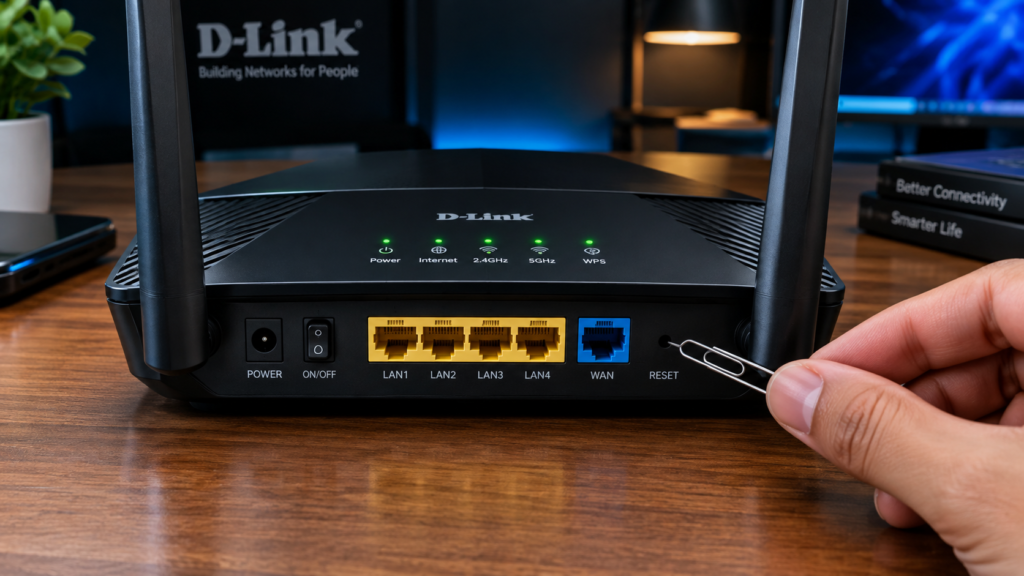
Take a paperclip or a SIM card pin and stick it into the pinhole until you feel a click. While holding the pin, press and hold the button for 10-15 seconds. Watch the front LED indicator lights while you do this.
As soon as all lights start blinking or go dark, remove the pin from the reset hole immediately.
Step 4: Wait for the System to Reboot
Now, wait for up to 1.5 minutes while the device reboots and restores the default settings. When the power light and Wi-Fi LED turn solid, it means the reset is done.
Method 2: How to Do a Factory Reset via Web Browser (If You Know the Password)
This method is for when you have access to the router administration panel and know your administrator password.
Step 1: Connect to the Router
Connect your PC or smartphone to the local network using Wi-Fi or an Ethernet cable.
Step 2: Enter the Router’s Administration Panel
Open Google Chrome browser or any other application on your smartphone and enter the following URL:
http://192.168.0.1
(Alternatively, try http://192.168.1.1 or http://dlinkrouter.local )
For older modem models, the default administrator username is Admin, and the password field can be left blank.
Step 3: Open the System Tools Menu
Now, go to the Management or System administration menu and select the System Tools option. Finally, choose the factory default option. It will ask you to confirm the operation by pressing the OK button. Now, wait for two minutes until the factory reset is done.
How to Configure Your D-Link.Router After the Factory Reset
After the reset, all your previous Wi-Fi network names and passwords will be deleted. Here are the main steps you need to take to configure your D-Link modem after a factory reset:
1. Find the Default Network Name and PIN on the Sticker
On the body of the modem, there should be a label with the default Wi-Fi name or SSID, and the default PIN for the initial Wi-Fi network.
2. Connect Your Device to the Default Wi-Fi Network
Switch on your smartphone and connect to the newly created default Wi-Fi network by typing the default PIN.
3. Open the Setup Web Page
Open your browser and go to http://192.168.0.1 to access the modem’s configuration menu. Now, you should see an initial wizard installation screen. Click the Next button.
4. Choose Your ISP Connection Type
Select Dynamic IP (DHCP) if your connection is the usual one. Otherwise, choose PPPoE if your broadband connection is PPPoE.
5. Set the SSID Wi-Fi Name and Password
In this step, you need to create a new secure wireless network name and password.
6. Set a Secure Password for the Administrator
Make sure you set a strong password for the administrator and note it down in a safe place.
Finally, click the Save and Apply button to save your changes and restart the router. Connect your laptop and smartphone to the new Wi-Fi network that you have set up.
Troubleshooting Common Issues After Reset
1. The LED Lights Did Not Blink during the Reset Procedure
Solution: It might be that you have not pushed the Reset button for a long enough time. Try pushing it again with a paperclip or a pin and hold it for 15 seconds.
2. I Have Connected to the Wi-Fi, but There Is No Internet Connection
Solution: If your ISP uses a PPPoE connection type, you need to enter your PPPoE username and password. Go to http://192.168.0.1 , enter your PPPoE credentials, and click connect.
3. The 192.168.0.1 Page Is Not Opening in Google Chrome or On My PC Solution: Turn off the mobile data on your smartphone while connected to the Wi-Fi network. On your PC, you may need to disable the IP address and set it to automatic. Then, refresh yo