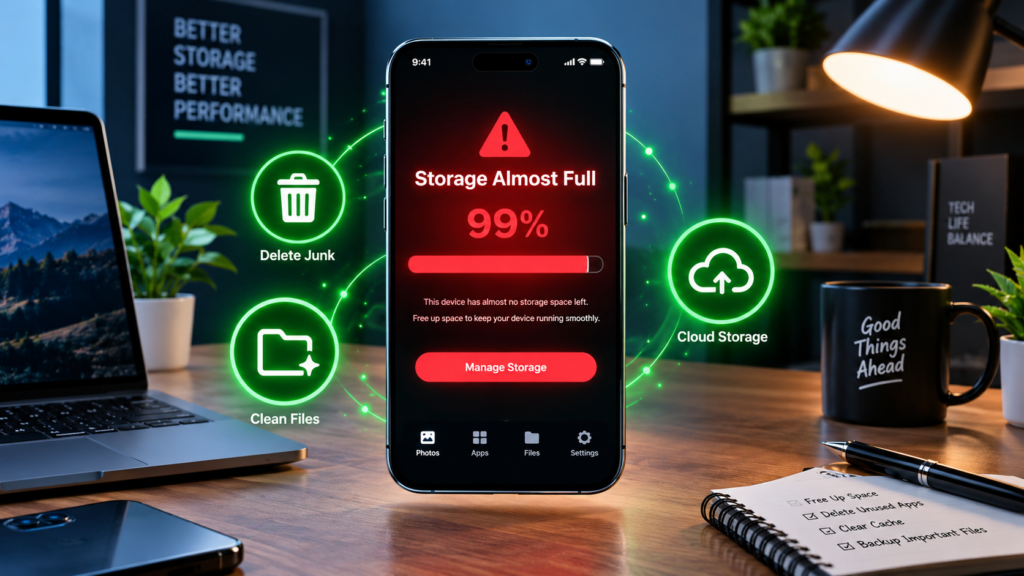
A phone storage full error will stop you from downloading important documents, WhatsApp will stop saving voice notes, and your camera will refuse to take photos. Panicked users will start deleting their personal photos and videos.
You should better avoid deleting your precious memories. Mostly, personal photos and videos occupy only a few percent of phone storage. Problem apps like WhatsApp media, cached system logs, and random junk files take up most of the space.
In this guide, I will show you how to clear thousands of megabytes of garbage from your Android or iPhone without deleting any photos and videos.
Why Do Phone Storages Fill Up Automatically?
Smartphones perform many background processes, and each will keep some cache files. Every time you browse social media or listen to music, your phone will create new cache entries.
The apps that occupy the largest number of bytes are:
1. App Caches – YouTube, Chrome, and Instagram keep image and video files in caches to load them faster. Cached messages and WhatsApp videos occupy 5-15 GB after months of use.
2. Messaging App Junks – When you get WhatsApp forwarded images and videos, they immediately take space in your phone storage. Deleting WhatsApp videos will leave several gigabytes of database backup files.
3. System Logs – Uninstalled games and apps get their folders deleted, but not always.
4. Streaming Services – Netflix, Amazon Prime, YouTube Music, and Spotify save space for downloaded offline tracks and videos.
Step 1: Clear App Caches on Android
The easiest way to gain gigabytes on Android is through clearing application caches. This process will wipe all the temporary files stored in the apps. Crucially, your photos, WhatsApp chats, and app login data will remain untouched.
How to clear app cache on Android:
1. Open the Settings menu in your smartphone.
2. Go to Apps or Manage Apps (use the search bar to locate it).
3. Enter the App List screen and sort apps by Size.
4. Open the largest apps (Chrome, Instagram, YouTube, Facebook), and select Storage & Cache.
5. Touch Clear Cache.
⚠️Important Note: Do not touch Clear Storage or Clear Data – it will wipe all WhatsApp messages and photos. After that, repeat this process for the ten largest apps, and you will gain between 5 and 10 gigabytes of free space.
Step 2: Clear WhatsApp Without Losing Your Photos
WhatsApp storage occupies the largest amount of space on Indian smartphones. Forwards WhatsApp videos, bulk WhatsApp PDF documents, and large WhatsApp voice notes fill up your storage. However, you can safely delete WhatsApp junks without losing your photos. Here is how to clear WhatsApp storage on Android:
1. Open WhatsApp and go to the three vertical dots in the top-right corner.
2. Choose Settings and then Storage and Data.
3. Tap Manage Storage at the top of the screen.
4. Go to Review and Delete Items and select Larger than 5 MB. You can choose which WhatsApp videos, images, or PDFs to delete.
5. You can safely delete large WhatsApp forwards, leaving your family WhatsApp photos. Scroll down to your WhatsApp chat list.
6. Open WhatsApp groups or chats with large video sizes and delete such WhatsApp videos.
This simple process will free 4-8 gigabytes on your phone storage.
Step 3: Google Files to Remove Hidden Junk Files
Google Files is a safe and reliable application that comes preinstalled on all modern Android devices.
1. Open the Files by Google app on your smartphone.
2. Touch Clean at the bottom left part of the screen.
3. The Google Files will scan your phone for Junk Files, Duplicate Files, and Old Screenshots.
4. Under Junk Files, touch Clean – this will delete temporary system files.
5. In the Duplicate Files, you will see identical images – the app will keep the originals and delete copies.
Step 4: Offload Unused Apps on iPhone
iPhone users can make use of the Offload Unused Apps feature. It lets you remove apps that you do not use for a while. It will free dozens of megabytes or even gigabytes of storage by removing app code. At the same time, the documents and app data will remain intact. When you return to use a particular app, you can immediately open it without restoring anything.
How to Offload Unused Apps on iPhone:
1. Open Settings and go to General.
2. Touch iPhone Storage. Look at the list of apps that occupy the most space, and select an app you will never use again (example – airline application).
3. Choose the Offload App option.
You can also turn on the Offload Unused Apps feature in the App Store Settings.
Step 5: Move Photos to Free Cloud Storage
Transferring photos to free cloud storage space is a safe way to free space on your phone. Google Photos Backup provides 15 GB of free storage for all Google Account users, including Gmail, Photos, and Drive.
1. Open the Google Photos application and touch your profile in the top-right corner.
2. Turn on Backup and choose Storage Saver quality for photos. It will let you store thousands of pictures.
3. After the photos are uploaded to Google Photos, open the application and look for the Free Up Space option. All photos selected for backup will move to the cloud and disappear from your smartphone. Make sure you have enough space in the Google Photos library.
If you do not want to use Google Photos, you can buy a cheap Type-C dual pen drive and store your photos there. All you need to do is connect the USB pen drive to the bottom of your phone and copy the photos from your phone’s DCIM camera folder to the pen drive.
Step 6: Delete Web Browser Caches and YouTube Downloads
Mobile browsers can occupy huge amounts of space by storing website caches.
How to delete Google Chrome cache on Android:
1. Open Google Chrome and go to the three vertical dots in the top right.
2. Go to History and then Clear Browsing Data.
3. Set the time frame to All Time and select the Cached Images and Files option.
4. Make sure that the Passwords and Browsing History are not selected.
5. Touch Clear Data and free up several gigabytes on your phone.
It is also worth going into the YouTube, Netflix, or Prime Video app and removing downloaded movies and TV series. Each full HD video takes up 1-3 GB of space.
Troubleshooting Tips
Problem 1: Other or System data occupies 20 GB.
Sometimes, Android will show the Other category occupies 20 GB or more. In reality, it is a mixture of old Android update installation packs or encrypted application records. Simply back up your WhatsApp messages, contacts, and photos, and perform a factory reset. Or, alternatively, you can clear Android system files by going to Settings > Storage > Other, and deleting all files.
Problem 2: Files That Have Been Deleted Still Occupy Space
Android and iPhone will keep deleted files in a hidden trash for 30 days. Go to the Gallery app or Files by Google and empty the trash can to free up those valuable gigabytes.
Problem 3: Free Space Appears Again After a Few Days
If you have followed all of the above tips, and the allocated phone memory fills up again, you should disable the automatic download of WhatsApp videos. Go to WhatsApp > Settings > Storage and Data > Media Auto-Download and set When using mobile data and When connected on Wi-Fi to No Media.
Summary
Phone storage filling up is not a reason to delete your valuable photos and videos. Instead, you can simply clean app caches, clear WhatsApp junks, and delete YouTube downloads, and free up 10-20 gigabytes of space in a matter of minutes.